How to size a PC power supply in 2026: account for GPU transient spikes, 12VHPWR connectors, efficiency curves, and safe headroom

NVMe SSDs can throttle under sustained load when controller and NAND temperatures exceed vendor-defined thresholds, protecting data integrity at the cost of performance. This guide explains why throttling happens and how to fix it with correct heatsink sizing, smart M.2 slot placement, proper thermal pad selection, and safe firmware and OS settings. Expect practical steps for desktops, workstations, and laptops, with cautions where verification is required.
The NVMe controller is a dense SoC that handles PCIe, flash translation, encryption, and queue management. During heavy writes or mixed workloads, it generates heat faster than bare M.2 sticks can dissipate. NAND also warms under sustained program/erase cycles. When onboard sensors approach limits defined by the firmware, the drive reduces throughput or bursts to lower heat.
Higher link speeds enable impressive IOPS and bandwidth but push more power through a small PCB. Many PCIe 4.0 and 5.0 drives need real heatsinks with adequate fin area, not just cosmetic shields. Small enclosures or stagnant airflow make the problem worse, especially near GPUs that dump heat into top M.2 slots.
Throttling behavior is determined by firmware curves that react to sensor readings and time at temperature. Short, bursty loads may stay fast, while long, sequential writes or large queue depth transfers hit sustained power states and trigger throttling. Background tasks like garbage collection and wear leveling can extend the hot period after a big copy finishes.
Motherboard slot location, backplate heat soak, and case pressure all influence SSD temperature. Front-to-back airflow that bypasses the M.2 area allows heat to pool. In compact systems and laptops, minimal clearance and shared heatpipes limit thermal headroom, so any installation mistake becomes costly.
An effective NVMe heatsink balances contact, fin area, and height. Look for a flat base that fully covers the controller and NAND packages, plus fins that align with your case airflow. More fin area typically helps sustained workloads, but check GPU clearance and side panel fit before buying a tall unit.
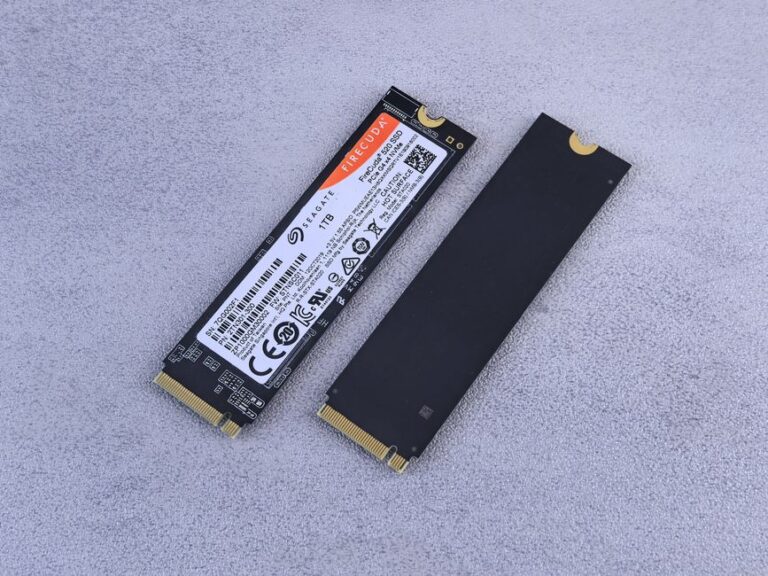
Some high-capacity SSDs have NAND on both sides. If only the top side is cooled, the bottom can overheat and trigger throttling. Choose a heatsink kit with a conductive backplate or ensure the motherboard backplate plus pad contacts the rear packages safely without flexing the PCB.
If sustained writes, scratch disk usage, or heavy database loads are routine, a small fan blowing across the M.2 area can stabilize temperatures. Use low-RPM, directed airflow rather than high static pressure. Verify that added airflow does not recirculate GPU exhaust onto the drive.
The top M.2 slot is usually CPU-connected and the fastest, but it often sits under the graphics card. GPU backplate heat can elevate idle temps and hasten throttling under load. If your workload is sustained and not latency-sensitive, a chipset-connected slot in a cooler location may run faster over time despite lower theoretical bandwidth.
PCIe 5.0 drives are sensitive to signal quality. Avoid long or unshielded risers unless the vendor certifies PCIe 5.0 compatibility. Poor signal margins can force downshifts or errors that increase controller work and heat. Keep the drive in a primary slot with the shortest, cleanest trace path when possible.
Ultrabooks often mount the NVMe near the CPU or under a keyboard deck with thin thermal pads. Replace worn pads with the same thickness and improve intake cleanliness. Do not add overly thick pads that bow the drive. Any modification in laptops may void warranties, so confirm the service manual before changes.
Thermal pads bridge uneven component heights to the heatsink base. Choose thickness that achieves firm contact without bending the PCB. Higher thermal conductivity pads help, but poor contact defeats even premium materials. If the controller package sits lower than the NAND, stack appropriately or use stepped pads designed for NVMe layouts.
Use the correct standoff height so the screw secures the module without bending. Uneven pressure creates micro-gaps that trap heat above the controller. If the motherboard shield relies on a hinge or latch, confirm both ends sit flush after tightening.
Vendors periodically adjust thermal curves, power states, and bug fixes that affect temperature behavior. Update SSD firmware using the manufacturer’s tool, and keep motherboard BIOS and chipset drivers current. Always back up important data before a firmware update and avoid power interruptions during the process.
PCIe Active State Power Management (ASPM) and NVMe Autonomous Power State Transition (APST) help reduce idle and light-load temperatures. On Windows, balanced or optimized power plans can enable link power savings; on Linux, kernel parameters and nvme-cli settings allow APST tuning. Validate stability after changes, because overly aggressive settings may increase latency or cause wake issues.
Steady thermals benefit from reducing unnecessary background work. Ensure regular TRIM is enabled so the controller has free blocks ready. Modest over-provisioning can lessen write amplification during sustained writes. Leave caching features at vendor defaults unless a specific workload and vendor documentation recommend changes. After heavy writes, allow idle time for cooldown and housekeeping.
Use SMART attributes and host logs to track temperature sensors and throttling events. Observe peak temperatures during real workloads rather than synthetic bursts only. If logs show frequent thermal throttling, revisit pad contact, heatsink sizing, and airflow before altering aggressive firmware settings.
Short throttling during unusually long writes can be normal, especially on small-capacity models with limited parallelism. Continuous throttling during everyday tasks, or drops that appear within seconds, usually point to inadequate cooling or poor contact. Treat sustained content creation, databases, or scratch disk use as scenarios that demand a real heatsink and directed airflow.
For a broader thermal strategy that includes case airflow patterns, pad application, and slot selection, see the detailed discussion in NVMe SSDs overheat and how to fix it. If deciding between interfaces for a gaming build, weigh platform thermals and workloads in NVMe vs SATA SSDs for gaming PCs. For systems that must complete firmware updates or large writes safely during outages, consider sizing a UPS for your homelab to keep power stable.
No. Each model’s firmware defines thresholds and response curves based on its controller, NAND, and power design. Check the vendor’s specifications and release notes for model-specific guidance.
Not always. A large heatsink with poor contact or blocked airflow can perform worse than a smaller, well-fitted design. Ensure proper pad thickness, even pressure, and clear airflow to the fins.
Yes, if mounted securely with controlled RPM and directed airflow. Avoid vibrating mounts and ensure the fan does not recirculate hot GPU exhaust onto the SSD.
Sometimes. Vendors may refine thermal behavior or power states in firmware, but updates cannot overcome inadequate physical cooling. Always back up and follow vendor instructions before updating.
Large sequential writes push the controller and NAND into sustained high-power states, heating the drive over time. Normal use is bursty and allows cooling between operations, so temperatures stay below throttling thresholds.