USB4 vs Thunderbolt 4: Real-World Bandwidth, Daisy-Chaining Limits, Cable Certification, and What Works with Your Laptop

Solid State Drives (SSDs) have transformed the landscape of gaming performance. Unlike traditional Hard Disk Drives (HDDs), SSDs utilize flash memory, which allows for faster data access and improved loading times. This guide will help you navigate the key considerations when selecting the right SSD for your gaming setup, ensuring you enhance your overall gaming experience.
When selecting an SSD for gaming, several factors come into play. Understanding these elements can help you make an informed decision that aligns with your gaming needs and budget.
The first aspect to consider is storage capacity. Gamers often require substantial space to accommodate large game files, downloadable content, and updates. Here are some common capacities:
Performance is crucial for an SSD. Two primary specifications to consider are read and write speeds, which impact loading times and game performance.
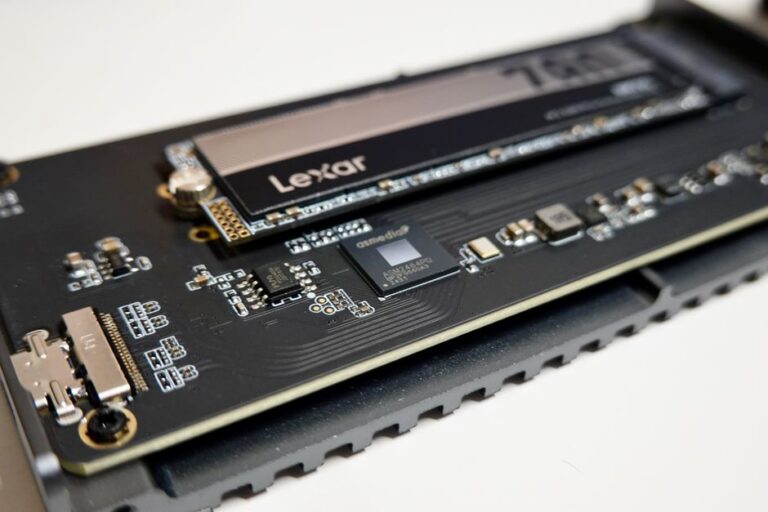
The form factor and interface of the SSD also play a significant role in compatibility and performance.
With numerous brands and models on the market, it is essential to compare your options based on reliability, warranty, and performance reviews.
Several brands are renowned for their quality SSDs. Here are a few to consider:
Before purchasing an SSD, check user reviews and performance benchmarks. Websites dedicated to hardware reviews often provide detailed comparisons and insights into real-world performance, helping you make a more informed decision.
Once you have chosen the right SSD, the next step is installation and setup. Proper installation ensures optimal performance and longevity of the drive.
Installing an SSD can vary depending on your system. Here are general steps for both desktop and laptop installations:
After installation, you may need to format and partition the SSD. This process prepares the drive for use and can be done through your operating system’s disk management tools.
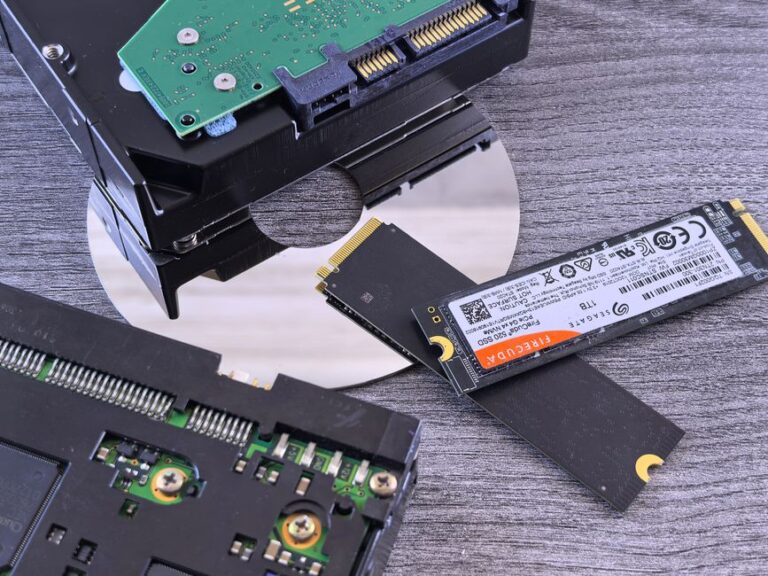
SATA SSDs are slower and connect via the SATA interface, while NVMe SSDs connect through PCIe and offer significantly faster data transfer rates.
For most gamers, a 1TB SSD is recommended to accommodate multiple large titles, but this can vary based on individual gaming habits.
As long as your system has the appropriate interface and space, you can easily upgrade to an SSD for improved performance.
Check your motherboard’s specifications online or in the user manual. Look for M.2 slots and support for PCIe interfaces.
Yes, upgrading to an SSD can significantly reduce loading times and improve overall game responsiveness, enhancing your gaming experience.
SSDs offer numerous advantages compared to traditional hard disk drives (HDDs). The most notable benefits include faster data access speeds, lower latency, and increased durability due to the absence of moving parts.
Games stored on SSDs load much quicker than those on HDDs. This results in shorter wait times, allowing players to jump into the action more swiftly. In many cases, loading times can be reduced from minutes to mere seconds.
No, not all SSDs are the same. They vary in terms of speed, lifespan, and price. It is essential to consider the type of SSD, such as SATA or NVMe, as well as the read and write speeds when making a purchase.
SATA SSDs are typically slower than NVMe SSDs, as they use the older SATA interface. NVMe SSDs connect directly to the motherboard via PCIe, offering significantly higher speeds and efficiency, making them a better choice for gamers.
Installing an SSD generally involves opening your PC case, locating the appropriate slot, and securely connecting the SSD. Follow manufacturer instructions for specific models to ensure a smooth installation.
Yes, many software options allow you to clone your existing HDD to your new SSD. This process will transfer your operating system, games, and files without the need for a complete reinstallation.
After installation, ensure that your operating system recognizes the new SSD. You may also want to configure your system settings to optimize performance, such as enabling TRIM support and adjusting game installations to utilize the SSD.